The most common question when connecting a team: "will a specialist see how much the one next to them earns?". No. And that is not a setting but a rule that works across the whole system.
Where it is in the CRM
- Roles and permissions: Settings → Team → Access.
- Users: Settings → Team → Users; the Create CRM user button is in the employee card.
- Two-factor login: Profile.
Ready roles
Six templates you start from and can edit:
- System administrator. All rights, including new sections that appear later.
- Manager. Everything except managing roles, permissions, users and backups.
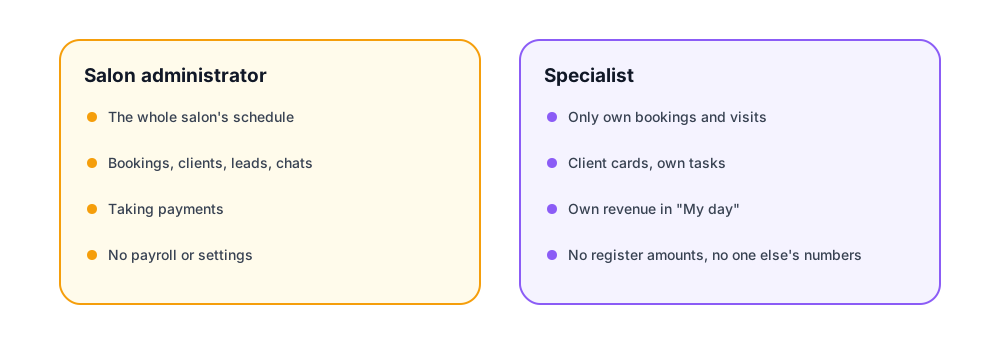
- Salon administrator (front desk). Bookings, clients, leads, chats, forms, viewing services and specialists, taking payments. Sees the whole salon's schedule: otherwise they could not book with other specialists.
- Specialist. Their own bookings, client cards, their own tasks, chats. Can change a booking's status and add services to their own visit.
- Cashier. The whole register and payments, plus viewing bookings and clients.
- Marketer. Mailings, leads, forms, reports, no access to the register.
The company owner always has all rights regardless of roles.
"Own only"
One rule for the whole system: if a person has the right to "see own" and not the right to "see all", they see only bookings, visits and reports for their own employee card. A specialist opens the calendar and sees their day; the revenue report shows their revenue, not the salon's.
These rights used to differ only on paper, and a specialist could see other people's bookings and colleagues' tips. Now it is closed in code, not in settings.
Money separate from bookings
The right to bookings does not open finances. How much was paid, by what method, how much is owed is visible to those with rights to payments or the register. A specialist sees that the client came and what was done, but not the amount in the register.
Inviting an employee
The employee card has a "Create CRM user" button. You enter an email, a role and, optionally, a password; otherwise the system generates a 12-character one. The employee gets an email with the login address, the username and the password. Instead of email you can send an SMS, if a provider is connected, or send nothing and hand the details over in person.
The number of users is limited by the plan: one on Solo, two on Start, ten on Salon. Creating a user from the employee card checks this limit too.
Two-factor login
Every user can switch on a second factor: a code-generator app, SMS or email, even several at once. For the app a QR code is shown, generated on our side: the secret does not go to third-party services. Backup codes are issued with the second factor in case the phone is lost.


Comments
No comments yet. Ask your question — we answer within a day.